Administrative Share and VIX
The Issue
Processing SERVER Error: Failed to connect to guest agent. Errors:
'Cannot connect to the host's administrative share. Host:  [SERVER.ad.domain.com]. Account: [ad.domain.com\svc.backup].
Win32 error:The network path was not found.
 Code: 53
Cannot connect to the host's administrative share. Host:  [10.3.140.130]. Account: [ad.domain.com\svc.backup].
Win32 error:The network path was not found.
 Code: 53

Connecting to guest OS to VIX failed
Testing admin share accessibility via VIX failed
Veeam cannot connect to the share on the server
The Resolution
- Try allowing File and Printer Sharing rules through the Windows Firewall
- Try accessing: \servername\c$ and \servername\admin
- Port 139 and 445 need to be open to the Veeam server (inbound)
- Try disabling UAC
- Try adding the account used as local administrator to the server
- Check C: drive disk space
If the server says the firewalls managed by Group Policy, you'll have to modify the group policy and add a new rule in that allows port 139 and 445 through Inbound, you can do this by doing the following:
- Check which group policy is applied by running gpresult /h gp.html from a command prompt
- Open the gp.html
- Ctrl + f to find "firewall"
- Take a note of the group policy that applying the firewall, as this is the GPO you are going to modify.
- Find an AD server and open up Group Policy Management
- Browse through the hierarchy and find your group policy object
- Right-click > Edit the group policy
- Locate the following policy and create a new one, like the following screenshot
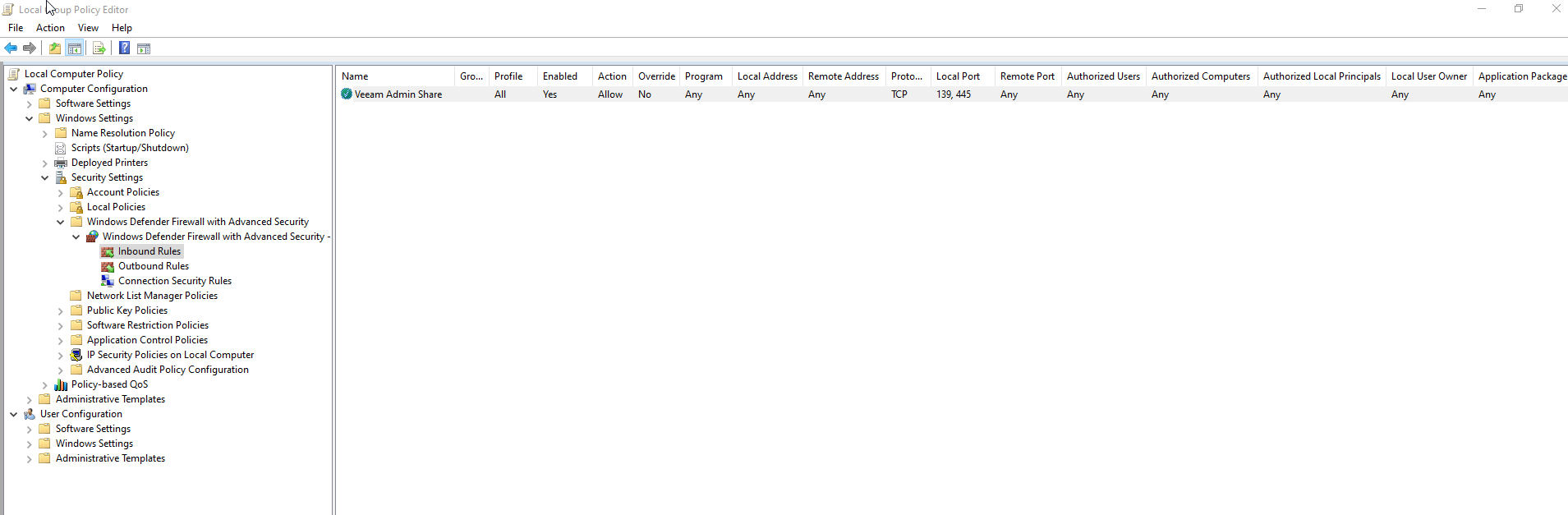
- Once you've updated group policy, wait for it to propagate through AD and then log onto the affected server and run a gpupdate /force to force group policy to up date
- You should now be able to get to the admin share through: \ip\admin$ or \servername\admin$
Reference https://www.veeam.com/kb1230